

Invoice Backdate | Invoice Order Backdate | Back Date In Invoice | Bill / Invoice / Credit Note / Debit Note / Payment / Journal Backdate
Key Features of Backdate Functionality for Invoice and Payment:
- With this app, you can confirm invoice orders, credit notes, bills, debit notes, and payments using a selected backdate.
- It allows you to define a custom backdate and add remarks to sales orders.
- You can assign backdates in bulk with a single click.
- During mass backdate assignment, the system prompts you to enter remarks through a dedicated wizard.
- The chosen backdate and remarks are automatically reflected in journal entries.
Invoice Backdate | Invoice Order Backdate | Back Date In Invoice | Bill / Invoice / Credit Note / Debit Note / Payment / Journal Backdate
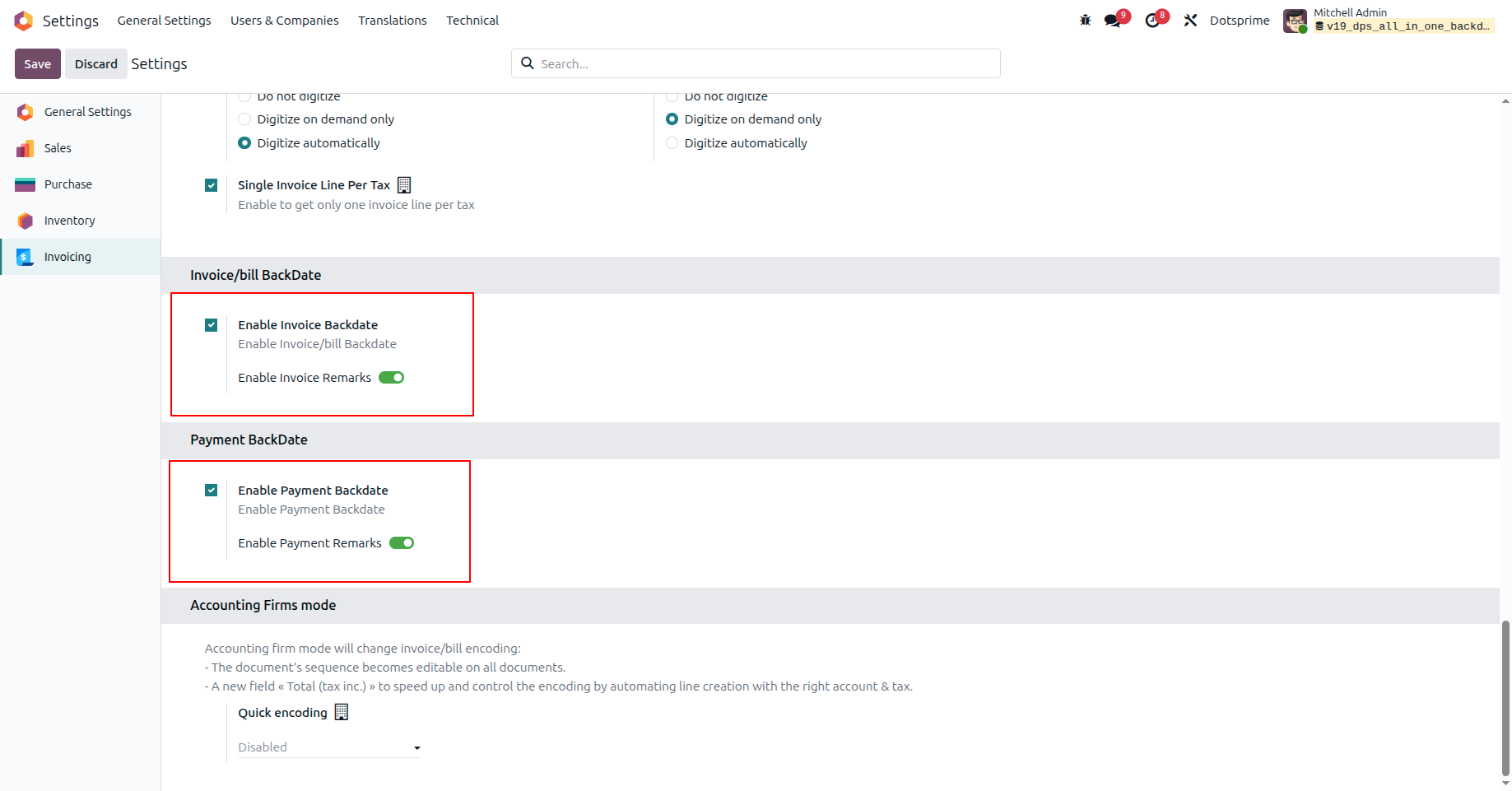
1. Enable the Invoice and Payment backdate features along with remarks from the Invoicing
settings.
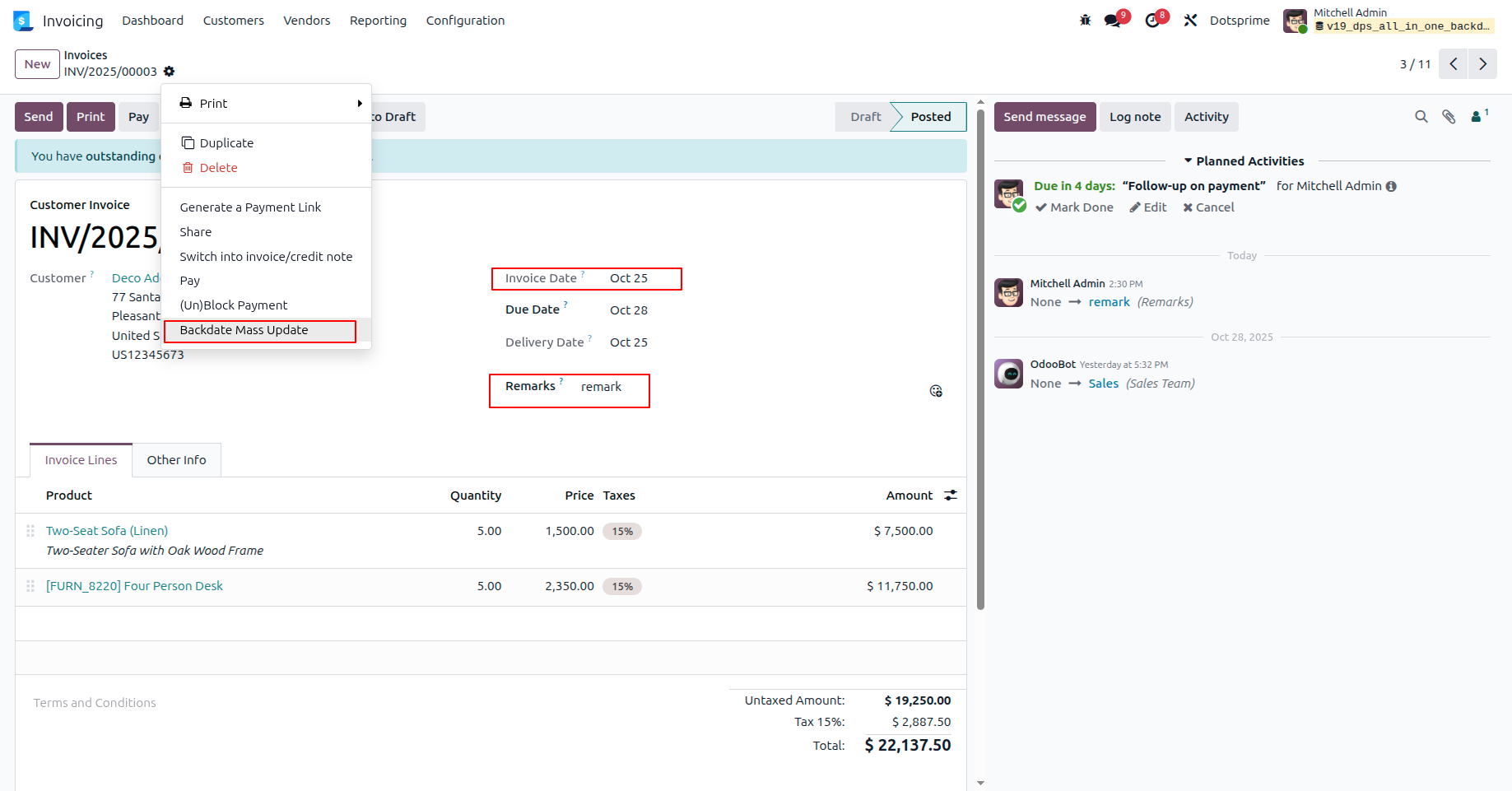
2. Select "Backdate Mass Update" from the Action menu on a Customer Invoice.
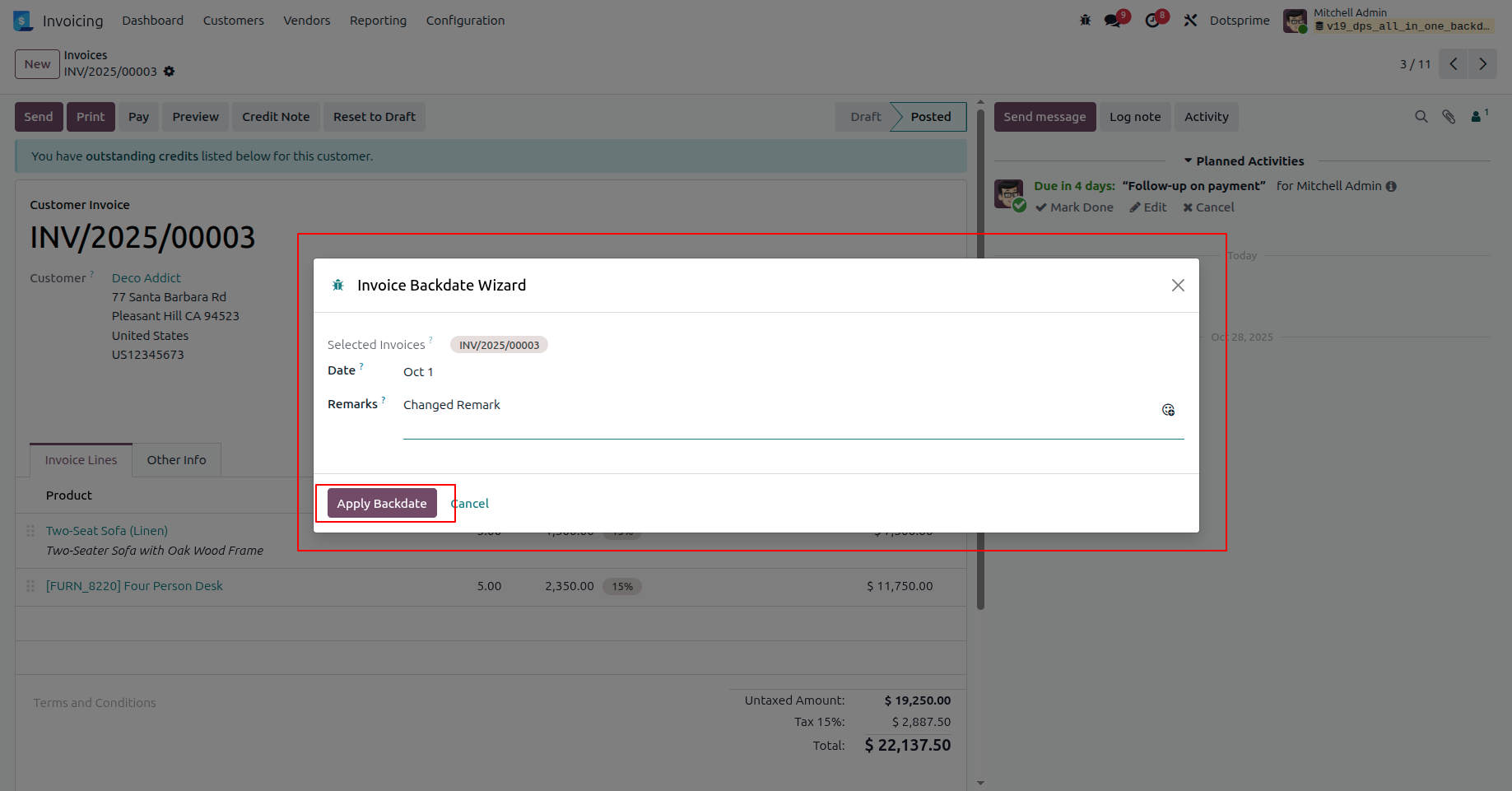
3. Enter the Date and Remarks in the Invoice Backdate Wizard and click "Apply
Backdate".
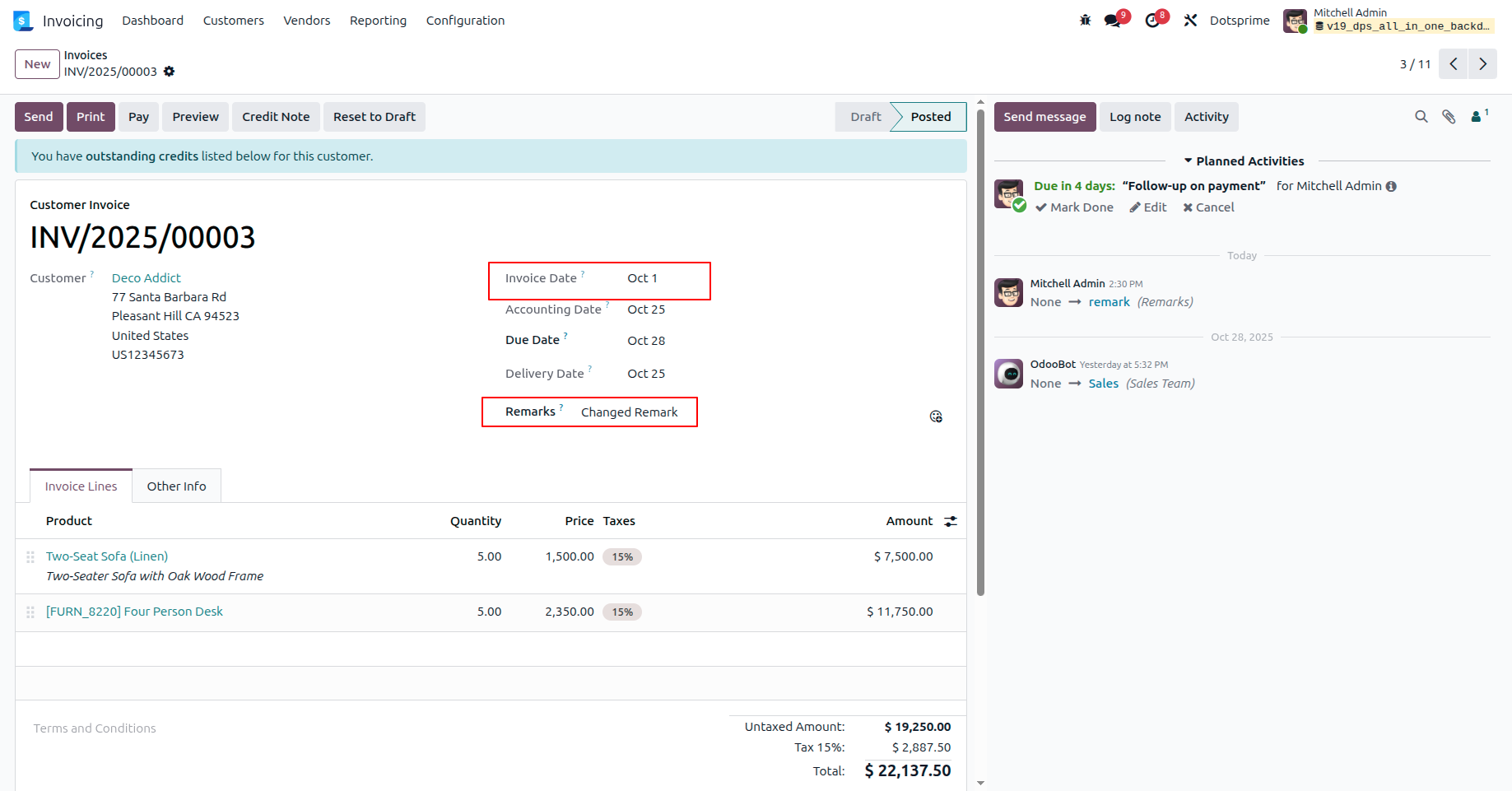
4. The Invoice Date and Remarks are automatically updated on the invoice as shown.
5. Select multiple invoices from the list view and choose "Backdate Mass Update"
from the Action menu.
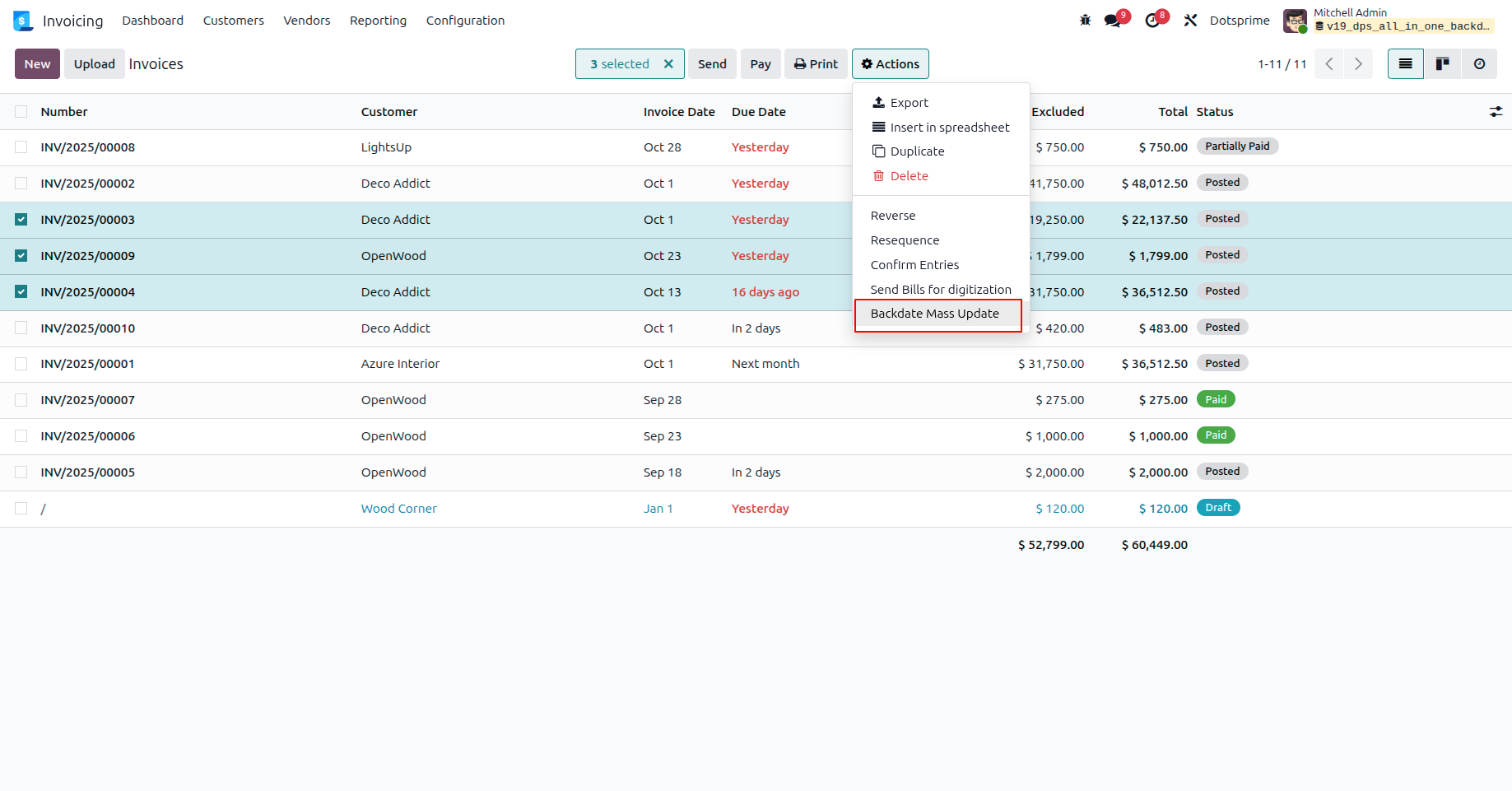
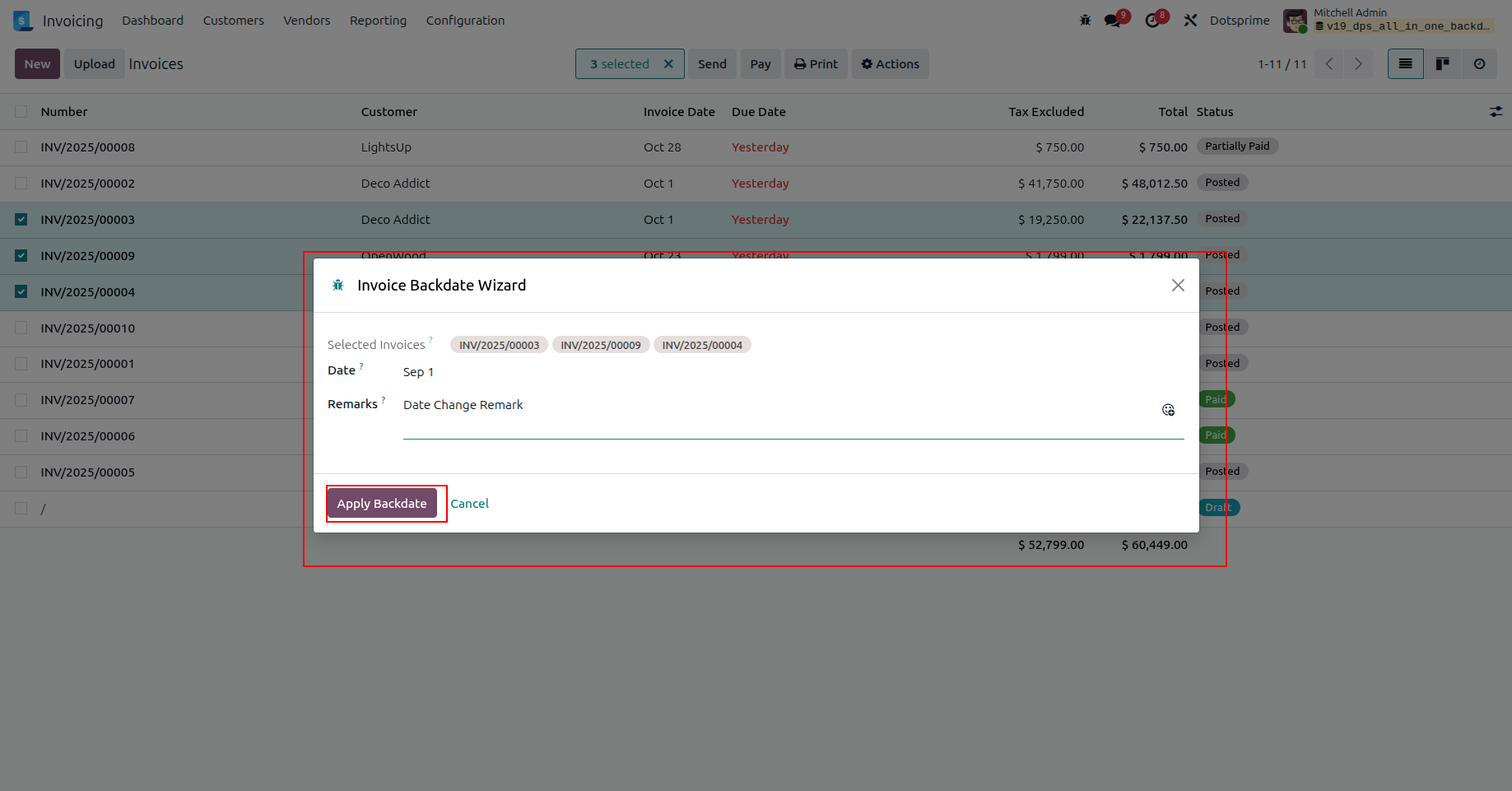
6. Enter the backdate and remarks for all selected invoices in the wizard.
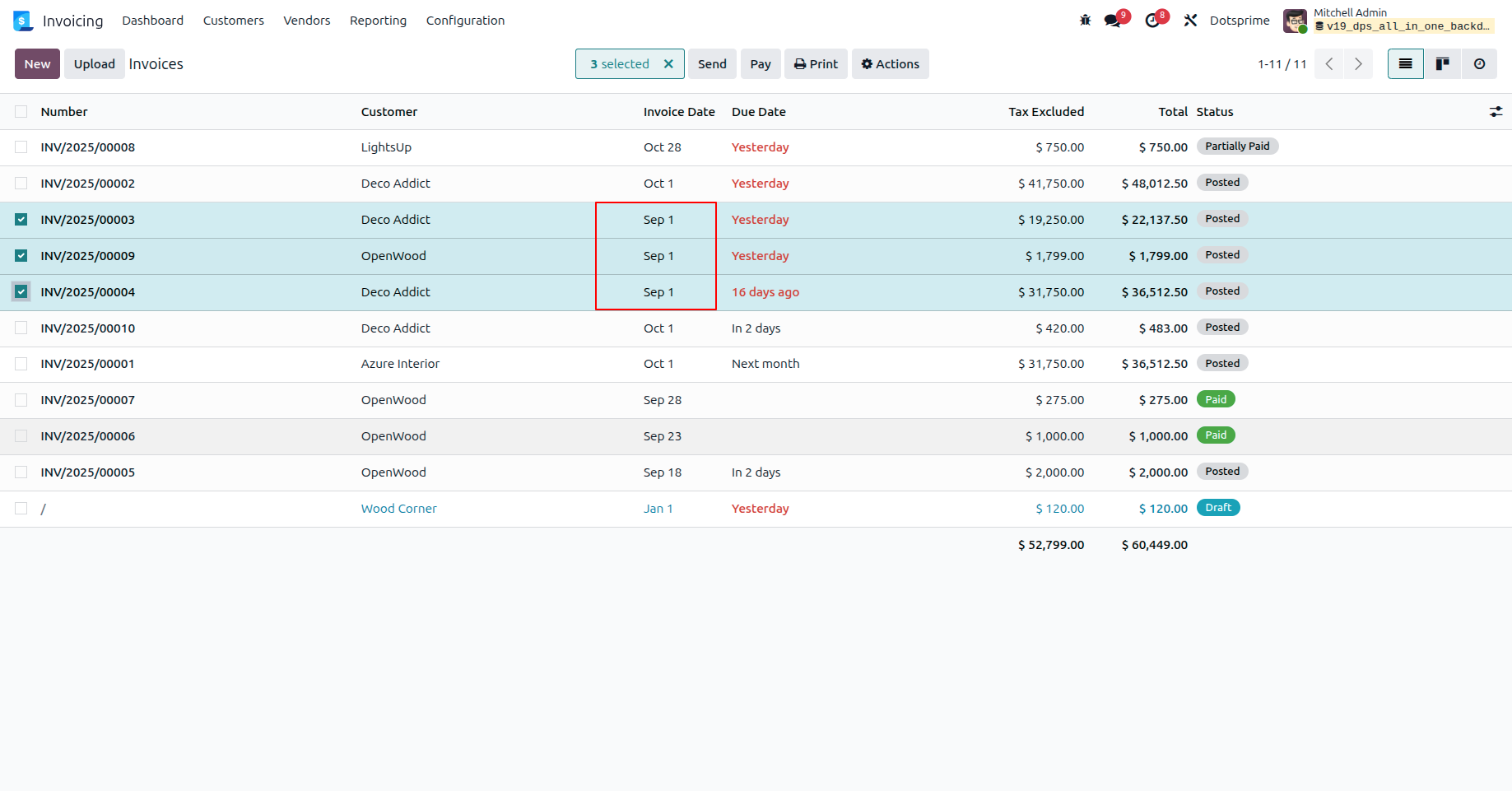
7. The selected invoices are updated with the new date in the list view.
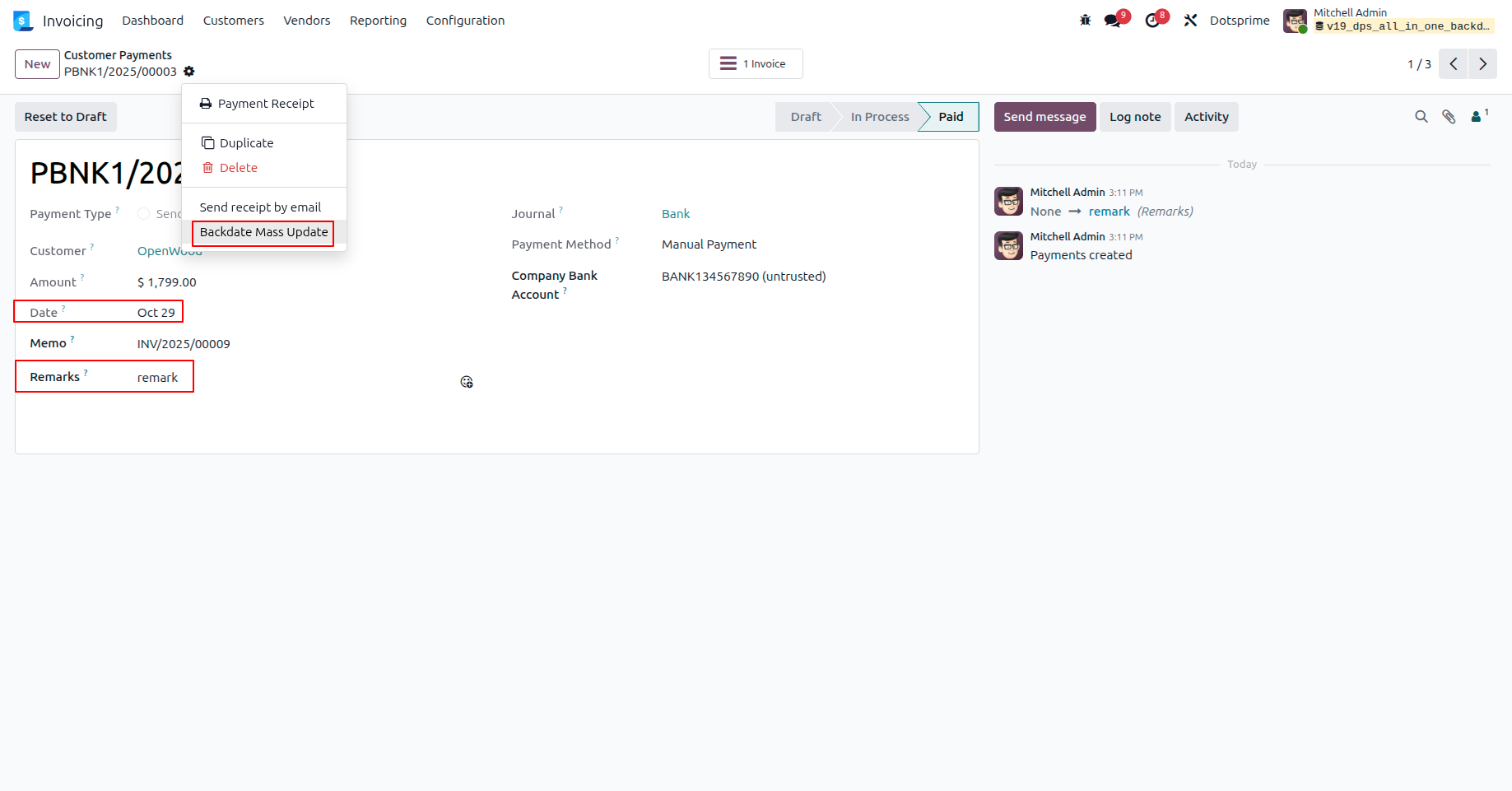
8. Use the "Backdate Mass Update" option from the Action menu on a Payment record.
9. Set the backdate and remarks in the Payment Backdate Wizard.
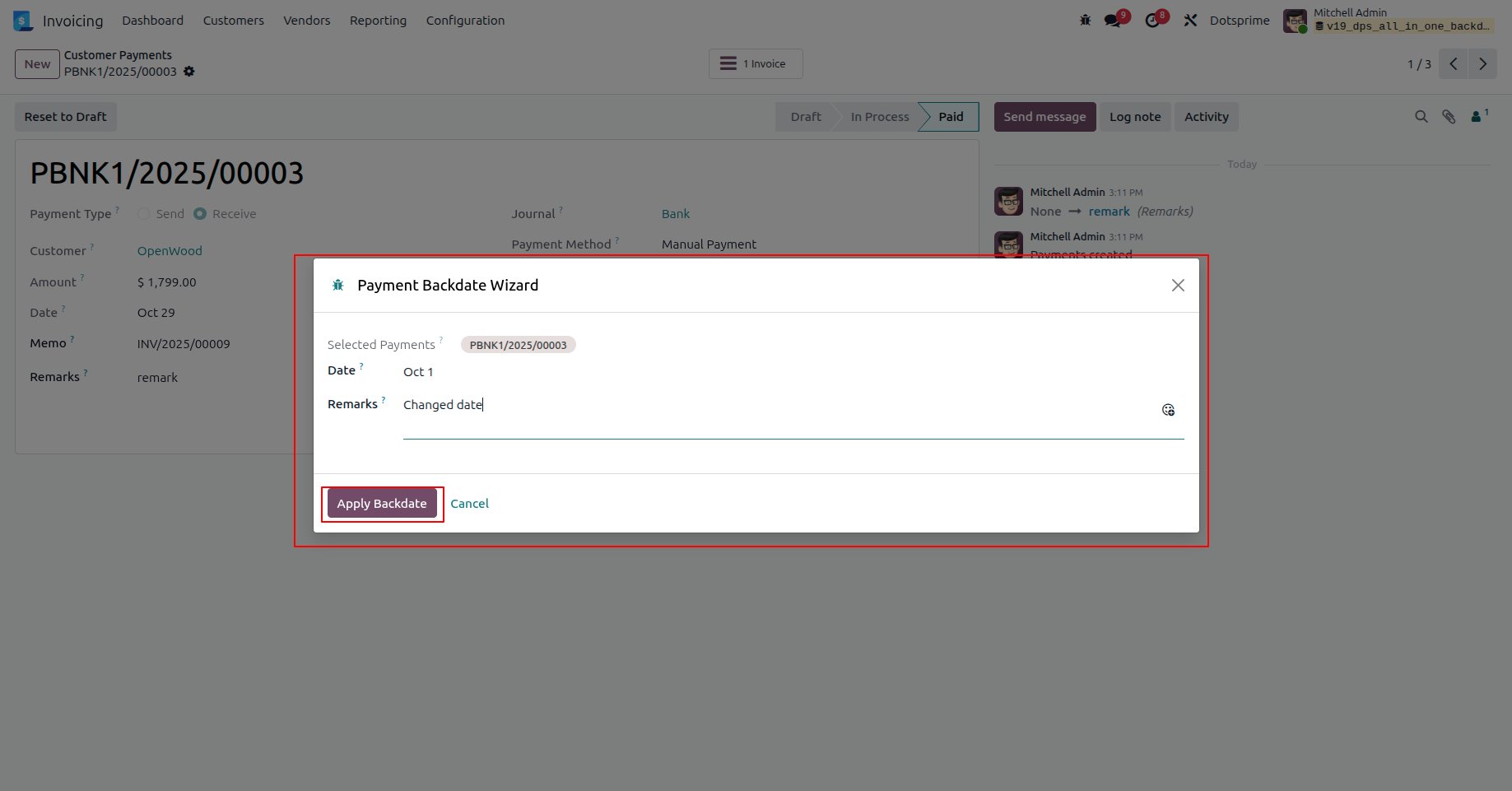
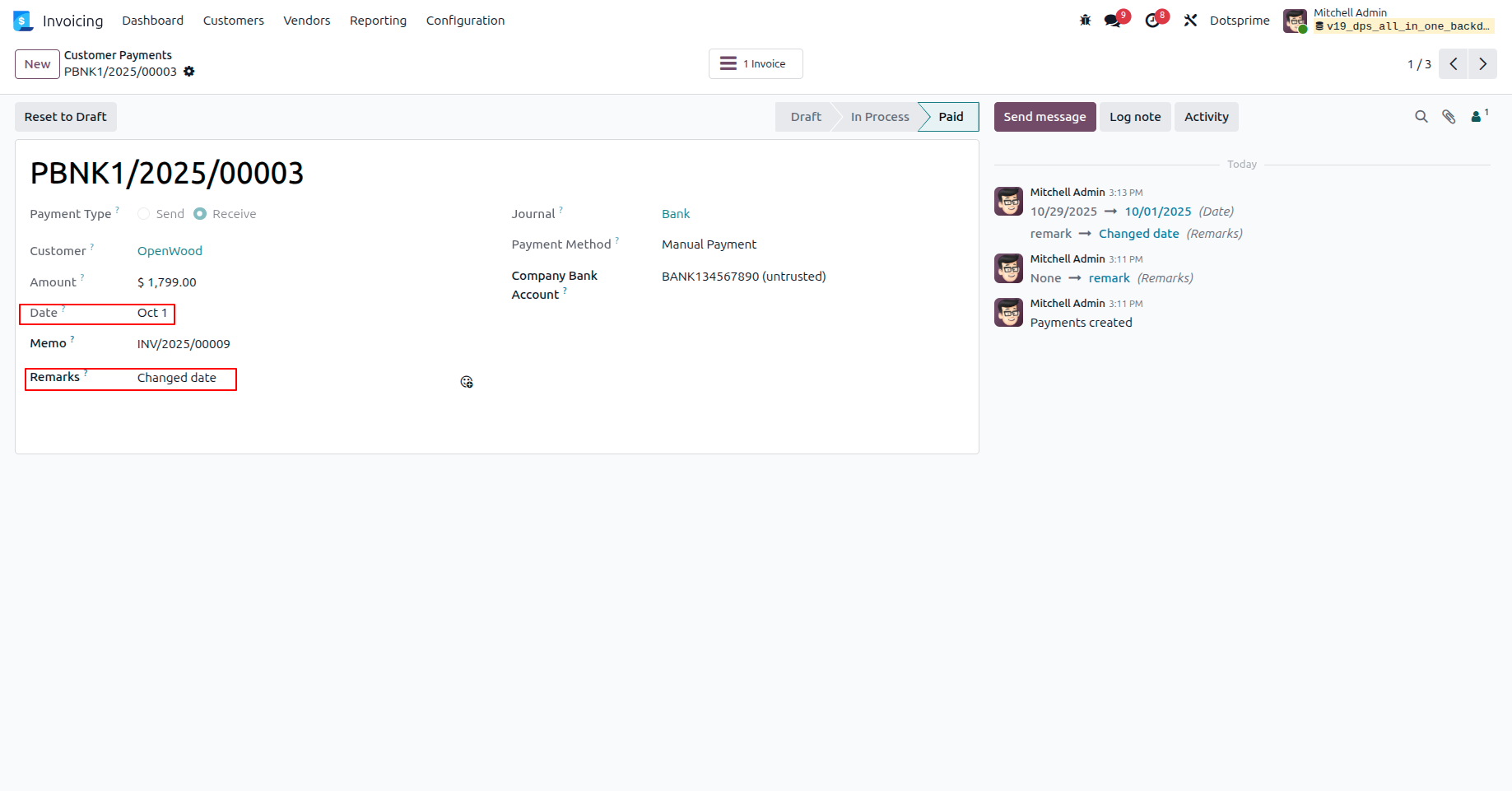
10. The payment date and remarks are reflected on the payment form.
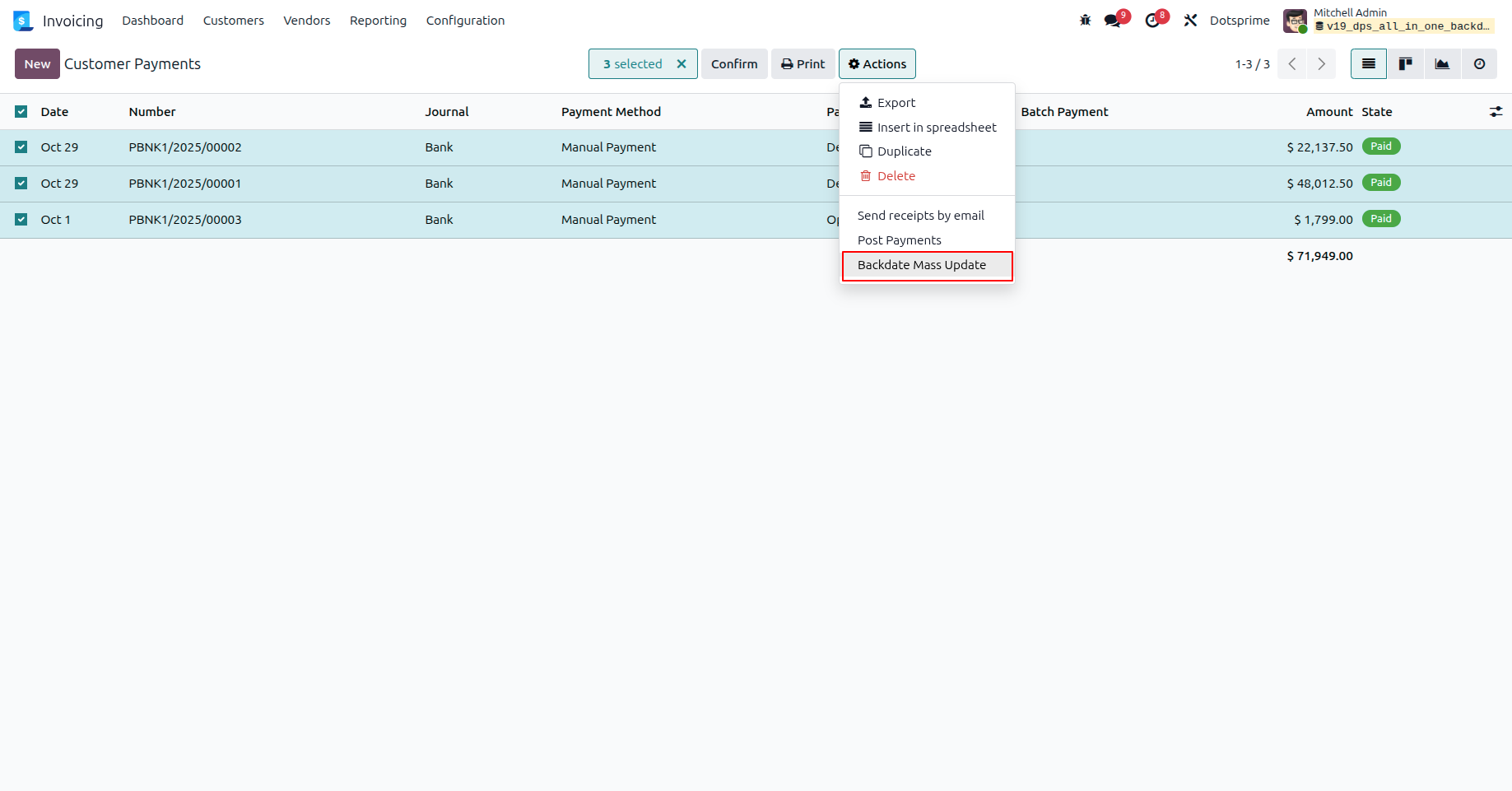
11. Select multiple payments and choose "Backdate Mass Update" from the Action
menu.
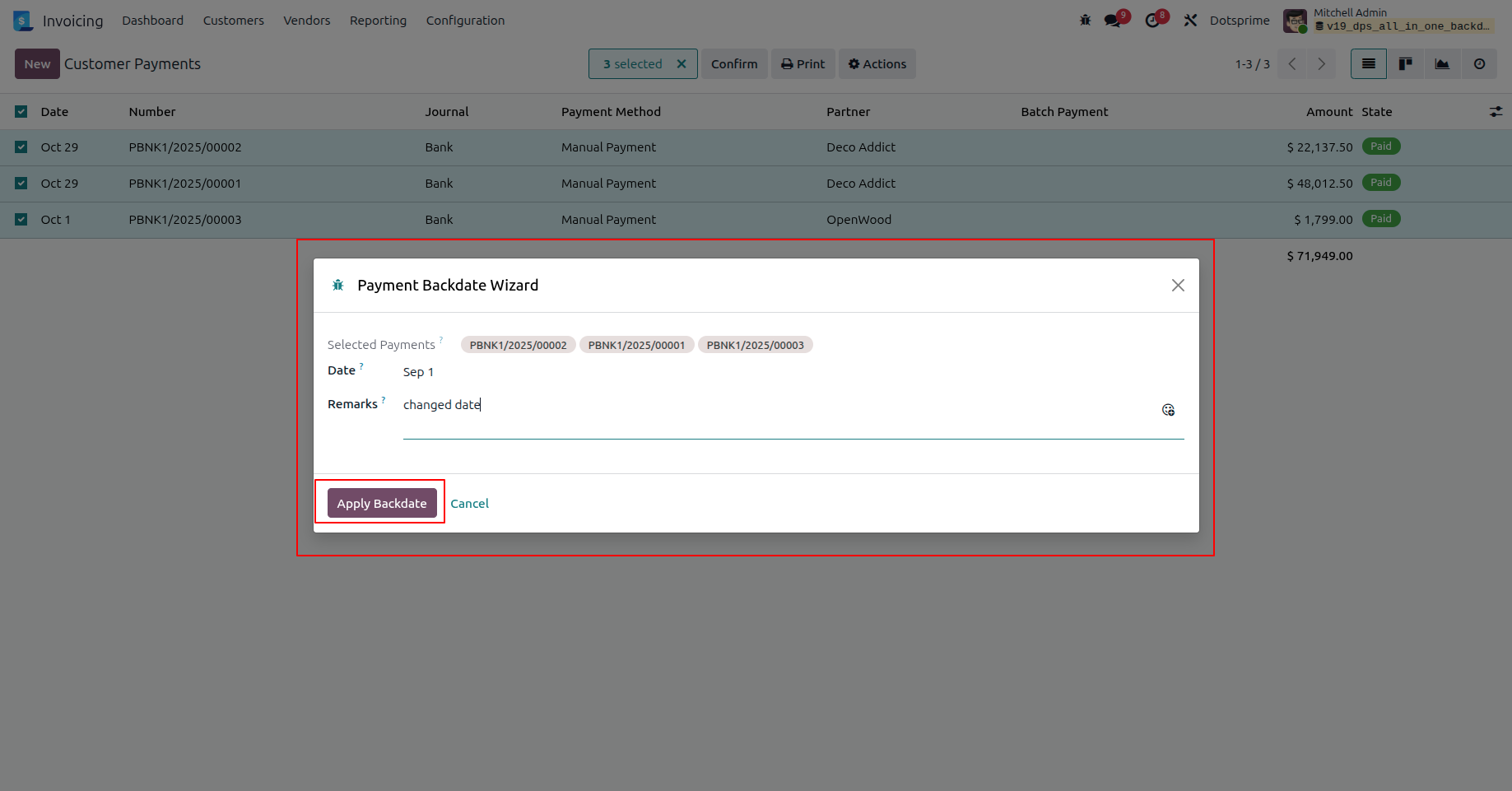
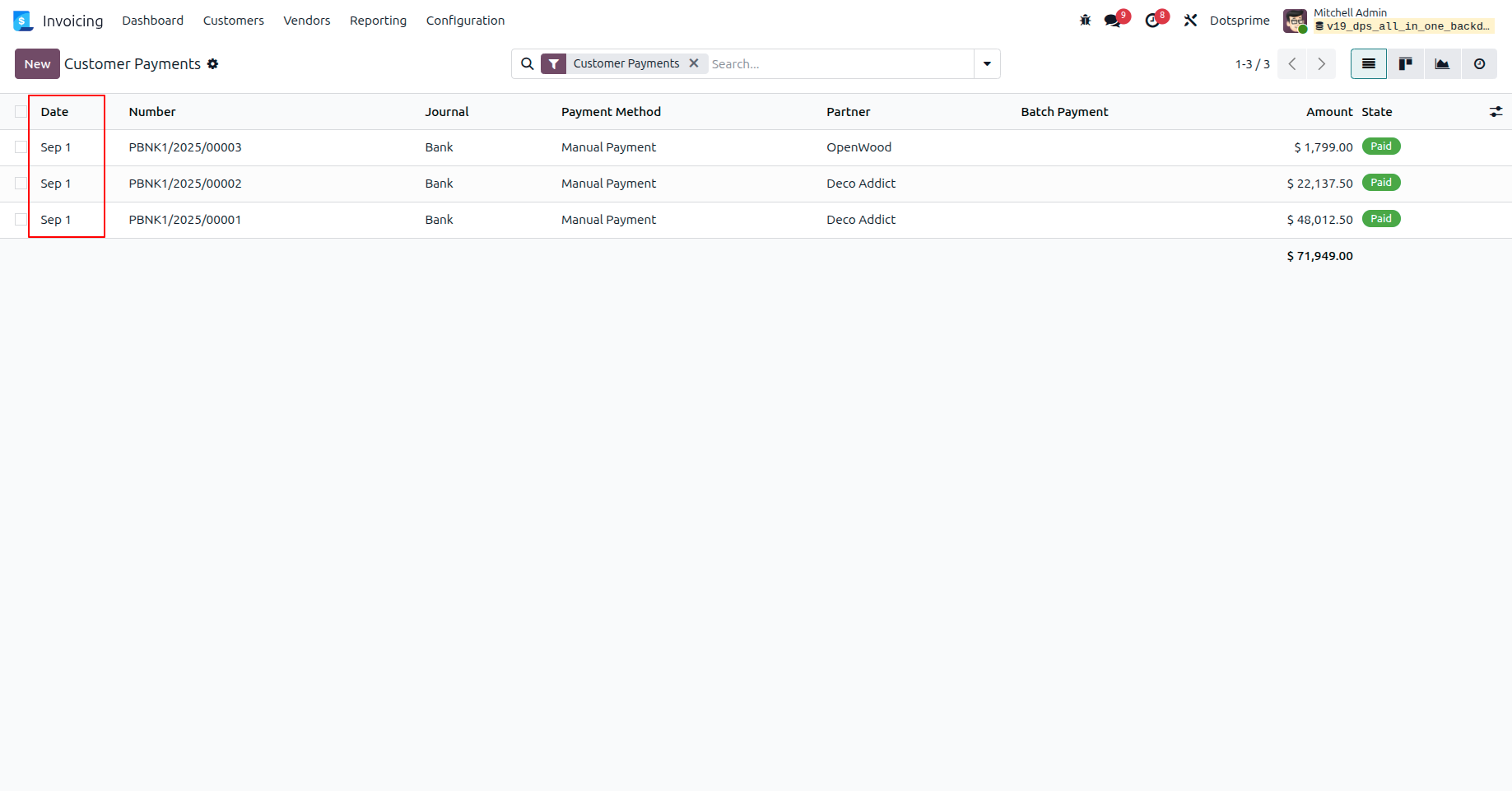
12.Apply the backdate and remarks to multiple payment records at once.
13.The selected invoices are updated with the new date.
NOTE: If you have any question regarding this apps you can ask us. If you need to resolve error with any another apps it will take an extra changes for bug fixing and make compatible.
Our Service







If you are looking for any Customsation, Support, Implementation, Migration, Odoo Training (Technical-Functional), Odoo Version Migration, Odoo Database Migration, Odoo Support, Odoo Fixing, Odoo Bug fixing, Any query plz Contact us We are ready to help you.
Contact us for support


Manifest details not found.